
You’ve all done it: installed some software, didn’t like it, uninstalled it, had its ghost on the right click “Open with” menu thereafter. Uninstall programs just leave so much shit behind. For me it was the Diamond text editor. If that name sounds familiar to you it is because I’ve written bout it many times before.
Installed Diamond on this Optiplex 7070 and when I went to use it the thing bitched about not being able to create a configuration or settings file. Could I have muddled through and fixed this? Probably. I was really just looking for a nothing text editor to cut & paste things into while I setup and installed software. Notepad has glacial load times in Windows 11.
My hurried work around was to install Notepad3. Not a bad product in a pinch. What really sucks in the Windows world is the lack of nothing editors like Leafpad. It doesn’t format anything nor does it try to interpret anything. If you cut something with a bunch of hidden characters from the Web or a word processor, you can kiss them goodbye (or see some garbage) when you paste into Leafpad.
Of course I quickly uninstalled Diamond, but its ghost kept following me around. Every time I right clicked and displayed the “Open with” menu, there it was. What was really funny is if you chose it from that menu you get a new dialog asking you to choose a default app.
Killing a Right Click Menu Ghost – Step 1
To start with, the AI generated shit you find is all wrong. Most of the other things I found, like software and instructions are of zero use as well. Typical of the Internet these days. Search engines are more focused on identity theft and selling advertising than actually being useful.
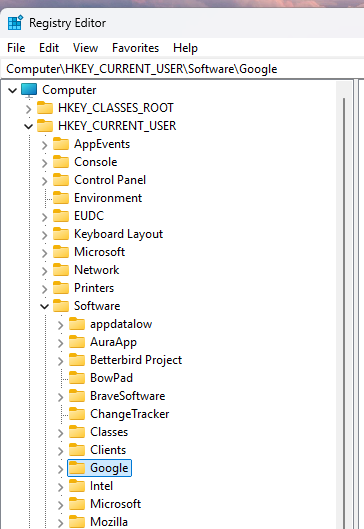
Yes, I forgot to take the screen shot before I nuked Diamond here. Why? Because the snipping tool is badly broken in Windows 11 and I was looking for an alternative while fixing this. I ended up getting Greenshot.
For those who do not know how to get here. The Windows key + R. Type “regedit” without the quotes and hit return. Open up HKEY_CURRENT_USER -> Software then scan for your ghost. When you find it do not click on it to expand. Right click on it and nuke the entire folder.
Killing a Right Click Menu Ghost – Step 2

Before leaving the registry editor, HKEY_CLASSES_ROOT -> Applications then look for your ghost. Once you find it, do not click on it. Right click on it and nuke it. Exit the registry editor.
All Better

The ghost is no longer haunting the “Open with” menu for text files.
